
TLDR
- Custom keyboard stickers work best as kiss-cut pieces on one organized sticker sheet.
- A sticker sheet keeps key labels, shortcut icons, language overlays, logo marks and extras together.
- Custom keyboard stickers are useful for software shortcuts, gaming controls, classroom keyboards, accessibility labels and branded tech kits.
- The best designs use high contrast, simple icons, rounded corners and careful sizing.
- Measure the actual keys before ordering because laptop, desktop and mechanical keyboard layouts vary.
Custom keyboard stickers sound simple until you try to manage 40 tiny labels loose in a bag. That is where sticker sheets make the whole project cleaner.
With a sticker sheet, each key label stays in place until you need it. You can group shortcuts by row, include backup labels and make the set feel like a finished product. These stickers are not just decoration either. They can make a keyboard easier to use, easier to teach from or easier to brand for a specific team, software program or event.
What Are Custom Keyboard Stickers?
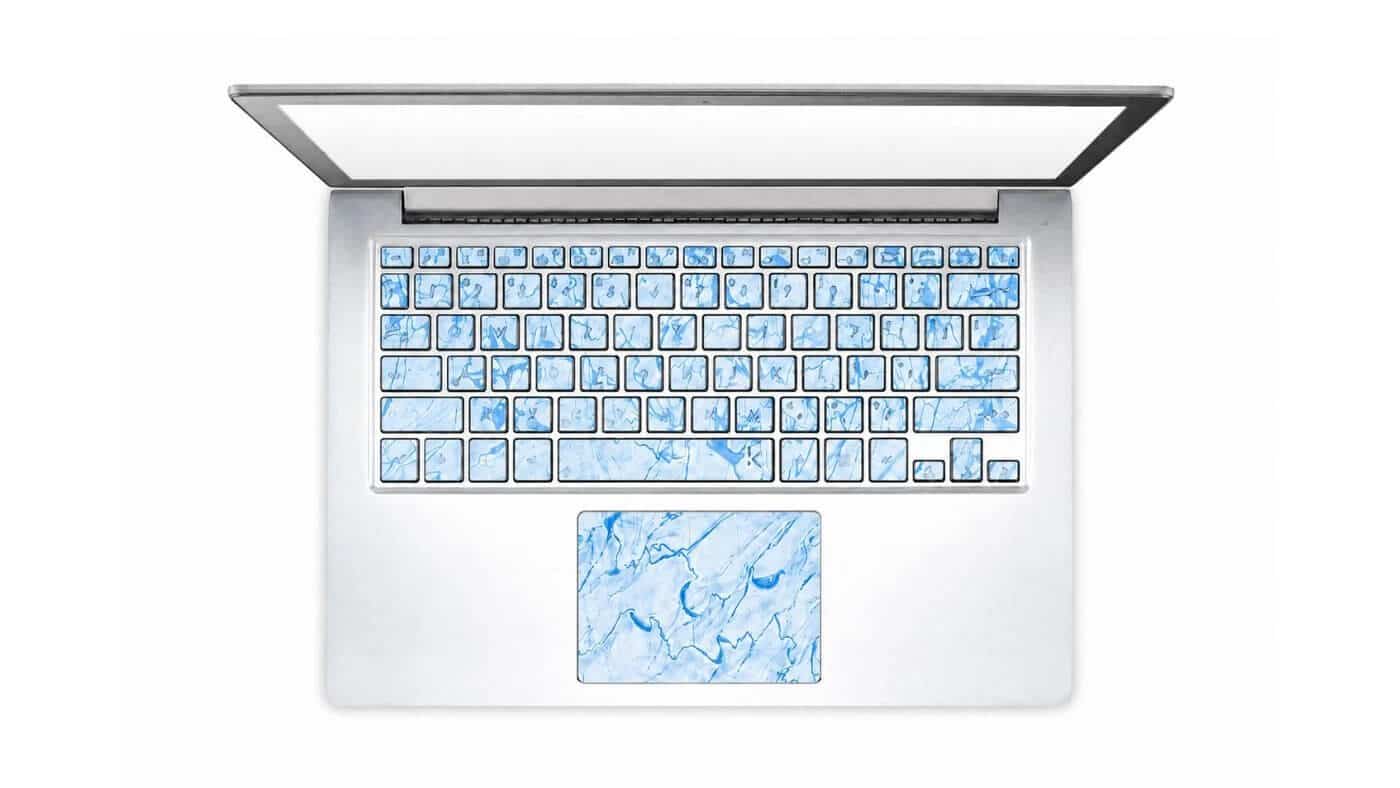
Custom keyboard stickers are small vinyl stickers made for keyboard keys or nearby tech surfaces. They can show letters, symbols, software shortcuts, language characters, gaming controls, accessibility labels or brand icons.
They are often called keyboard labels, key stickers, shortcut stickers, keyboard decals or keycap stickers. The names overlap. The important part is the format. For most projects, custom keyboard stickers are easiest to handle when they are printed on a sticker sheet.
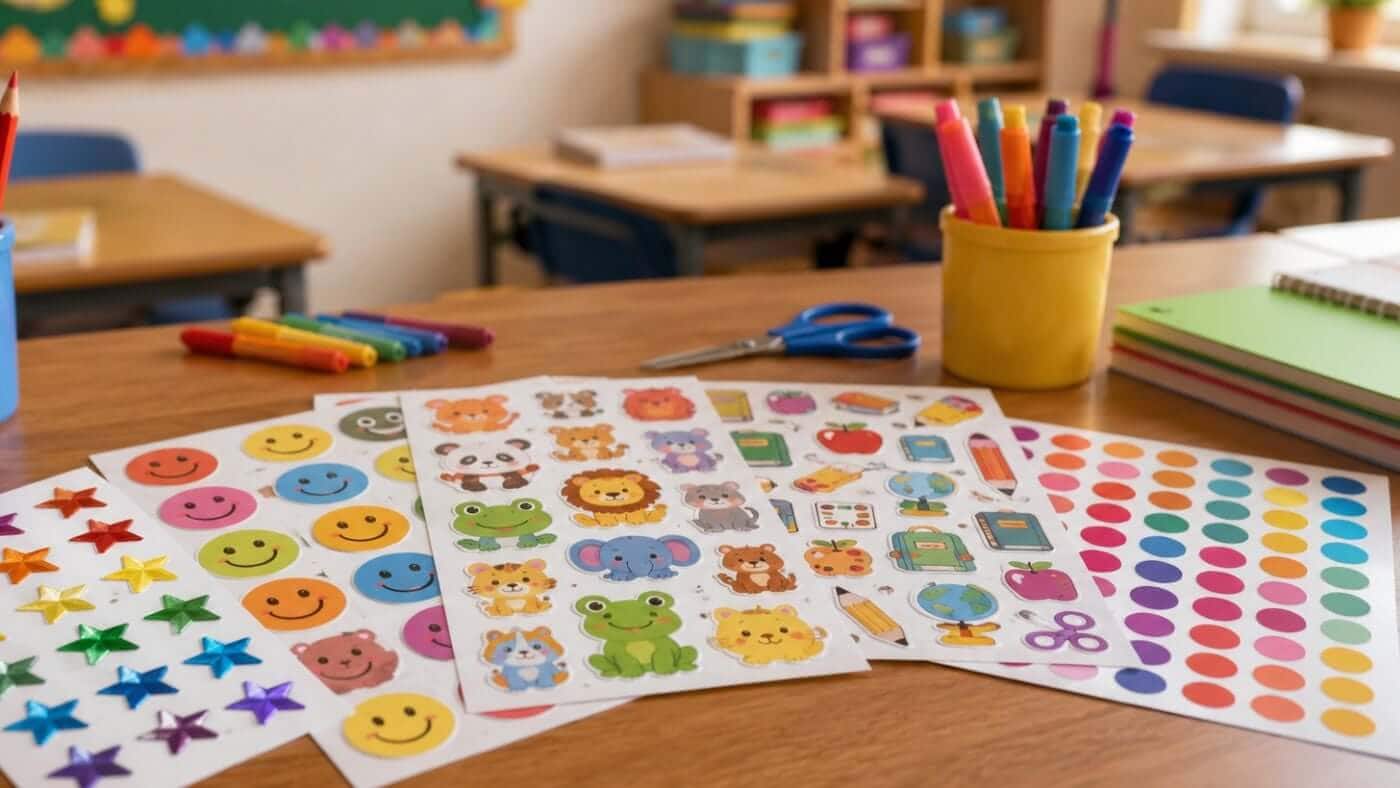
A sticker sheet uses kiss cuts. That means each sticker is cut through the sticker material, but the backing sheet stays intact. You peel off one sticker at a time while the rest of the set stays organized.
That matters because custom keyboard stickers are usually small. A sheet keeps the pieces in a logical layout, reduces lost labels and makes application less annoying.
Why Sticker Sheets Are The Best Format
The biggest advantage of sticker sheets is control. A keyboard project can include a dozen simple shortcut labels or a full set of key overlays. Either way, loose pieces are easy to misplace.
Sticker sheets give you space to arrange custom keyboard stickers by category, row or use case. For example, a video editing sheet might have timeline controls in one row, tool shortcuts in another and spare labels at the bottom. A language overlay can follow the keyboard layout so each sticker is easy to find.
| Project Type | Why A Sticker Sheet Helps |
|---|---|
| Software shortcuts | Groups related commands together |
| Gaming controls | Keeps movement, ability and menu keys organized |
| Language overlays | Arranges labels in keyboard order |
| Accessibility labels | Makes large-letter sets easier to apply |
| Employee tech kits | Combines key labels with laptop and logo stickers |
| Classroom sets | Keeps repeated stickers consistent across many keyboards |
Sticker sheets also make the finished set easier to sell, ship or hand out. A finished sheet feels clear and intentional. A pile of tiny loose labels does not.
Best Uses For Custom Keyboard Stickers
Custom keyboard stickers work best when they solve a clear problem. The sticker should help someone find a key faster, remember a command or personalize a setup without replacing the keyboard.
Software Shortcut Stickers
Creative software is one of the best uses for custom keyboard stickers. Programs like Photoshop, Illustrator, Premiere Pro, Final Cut, Blender, CAD tools and audio software all use shortcuts that people forget.
You do not need to label every key. That can make the keyboard harder to read. Instead, mark the commands people use most or the shortcuts that are hardest to remember.
Good shortcut ideas include:
- Save, undo, redo and export
- Brush, crop, select and type tools
- Timeline controls
- Layer commands
- Camera movement keys
- Render or preview commands
For shortcut sets, simple icons often work better than long text. A keyboard key is small. Give the user just enough information to act.
Gaming Keyboard Stickers
Custom keyboard stickers can also help with gaming setups. They can mark movement keys, ability keys, inventory keys or custom controls for a specific game.
This can be useful for kids, shared PCs, streaming setups, arcade cabinets or local events. It is also helpful when a keyboard is used by different people and the keybinds need to be obvious.
For mechanical keyboard collectors, stickers may not be the first choice because they change the feel of the keycap. That is fine. They are not trying to replace custom keycaps. They are a faster and more flexible way to add labels or temporary graphics.
Language And Bilingual Labels
Language overlays are another strong use. Custom keyboard stickers can add alternate letters, accent marks or bilingual labels to keys that do not already show them.
This is useful for second-language learners, international teams, shared workstations and users with a keyboard layout that does not match the language they type in most often.
Full keyboard language sets need careful sizing. Keys vary by laptop model, desktop keyboard, Mac layout, PC layout and compact keyboard style. The more complete the set, the more important measurement becomes.
Accessibility And Large-Letter Sets
Custom keyboard stickers can make keys easier to read. Larger letters, stronger contrast and simplified labels can help students, older users and anyone who struggles with small factory key markings.
For accessibility-focused stickers, clarity matters more than decoration. Use large type. Use strong contrast. Avoid background textures behind the letters. The goal is not to make the keyboard flashy. The goal is to make it easier to use.
Branded Tech Sticker Sheets
A sticker sheet can include more than key labels. You can combine custom keyboard stickers with a small laptop logo sticker, QR code sticker, support label, webcam reminder or onboarding sticker.
That makes the format useful for software companies, schools, creators, conventions and employee welcome kits. The keyboard stickers give the sheet a practical job while the extra stickers make it feel more complete.
How To Design Custom Keyboard Stickers
Small stickers need clean design. A keyboard sticker has very little room for clever details, so start with the purpose.
Ask one question first: what should this sticker help someone do?
If the answer is “find the shortcut faster,” make the label short and clear. If the answer is “decorate the keyboard,” make the design simple enough to read at key size. If the answer is “support accessibility,” remove anything that competes with the letter or symbol.
Use these design rules:
Keep Text Large. Tiny type gets hard to read fast. Use short labels like Save, Cut, Jump, Brush or Copy.
Use High Contrast. Black on white, white on black or another strong contrast usually works best.
Use Rounded Corners. Rounded corners are less likely to catch on fingers, cloths or cleaning wipes.
Leave A Small Inset. Do not size the sticker to the full edge of the key. A little margin makes placement easier and helps the sticker look cleaner.
Avoid Thin Lines. Fine outlines, tiny icons and delicate patterns can disappear at this size.
Build In Extras. Include spare stickers for common keys. People misplace small labels or apply one crooked. Extras help.
Sizing Tips For Keyboard Sticker Sheets
Do not assume every key is the same size. Even standard letter keys can vary slightly, especially across laptops and compact keyboards.
Measure the flat top area of the key, not the whole keycap. Then make the sticker a little smaller than that measurement. This creates a margin around the sticker and reduces edge lifting.
Special keys need special attention. Shift, Enter, Tab, Caps Lock, Backspace, Command, Alt, Control and Space are not the same size as regular letter keys. If the sheet includes those keys, design them separately.
For many projects, you do not need a full keyboard set. A partial sheet of custom keyboard stickers for the most important shortcuts is often cleaner and more useful.
Material And Finish Choices
Keyboard stickers sit on a high-touch surface. That means the material needs to hold up to fingers, light cleaning and daily use.
Vinyl sticker sheets are usually a good choice because vinyl is more durable than paper. A protective laminate can help guard the print against scratches and moisture. For keyboard use, matte or satin finishes can feel more natural because they reduce glare. Gloss can still work, especially for bright icons or branded sheets, but it may stand out more on the key.
White vinyl is the easiest base for readable custom keyboard stickers. It keeps colors and text clear. Clear stickers can work on some keyboards, but the keyboard color underneath affects readability. A black keyboard, silver laptop and white keyboard will all change how a clear sticker looks.
Backlit keyboards need special thought. Opaque stickers may block the light. Transparent stickers may preserve more glow, but they still need enough contrast to be useful.
How To Order Custom Keyboard Stickers
You can order custom keyboard stickers as kiss-cut sticker sheets through CustomStickers.com sticker sheets. Upload your artwork, choose the size and quantity, then review the proof before production.
For the best proof, include clear notes. Say that the sheet is for keyboard use. Include the intended sticker size if you know it. Mention whether the stickers are for a laptop, desktop keyboard, mechanical keyboard, classroom set or software shortcut sheet.
A helpful order note might say:
“Please make this as a kiss-cut sticker sheet for custom keyboard stickers. Keep each sticker sized for keyboard keys, use rounded corners and include two extra Save and Undo labels.”
That kind of note gives the proofing team useful context. It also helps avoid a sheet that looks nice on screen but does not fit the actual keyboard well.
Application Tips
Apply the stickers slowly. Small labels are easy to place crooked, and once they are on your keyboard you will see them every day.
Turn off the laptop or unplug the keyboard before applying. Clean the keys with a dry or lightly damp microfiber cloth. If needed, use a small amount of isopropyl alcohol on the cloth, not directly on the keyboard. Let the keys dry fully.
Start with one less important sticker. Align it before pressing hard. Once it looks straight, press from the center outward. For a full sheet, work one row at a time.
Common Mistakes To Avoid
The most common mistake is trying to fit too much into each sticker. Custom keyboard stickers need to read fast.
Avoid these issues:
- Text that is too small
- Stickers that reach the full edge of the key
- Square corners
- Weak color contrast
- Detailed artwork that gets muddy at small size
- One size for every key
- No spare stickers
- A sheet layout that does not match how the stickers will be applied
A keyboard sticker sheet should feel easy before the first sticker is peeled. If the sheet already feels confusing, the layout needs work.
FAQs About Custom Keyboard Stickers
Are Custom Keyboard Stickers The Same As Keycaps?
No. Keycaps are physical keyboard parts. Custom keyboard stickers are adhesive labels placed on top of keys. Stickers are faster, cheaper and easier to customize, but they do not feel the same as replacing the keycap.